Guide
Who this is for: Small business owners who want to know whether their backups would actually save them after ransomware, a dead drive, a stolen laptop, or a deleted folder.
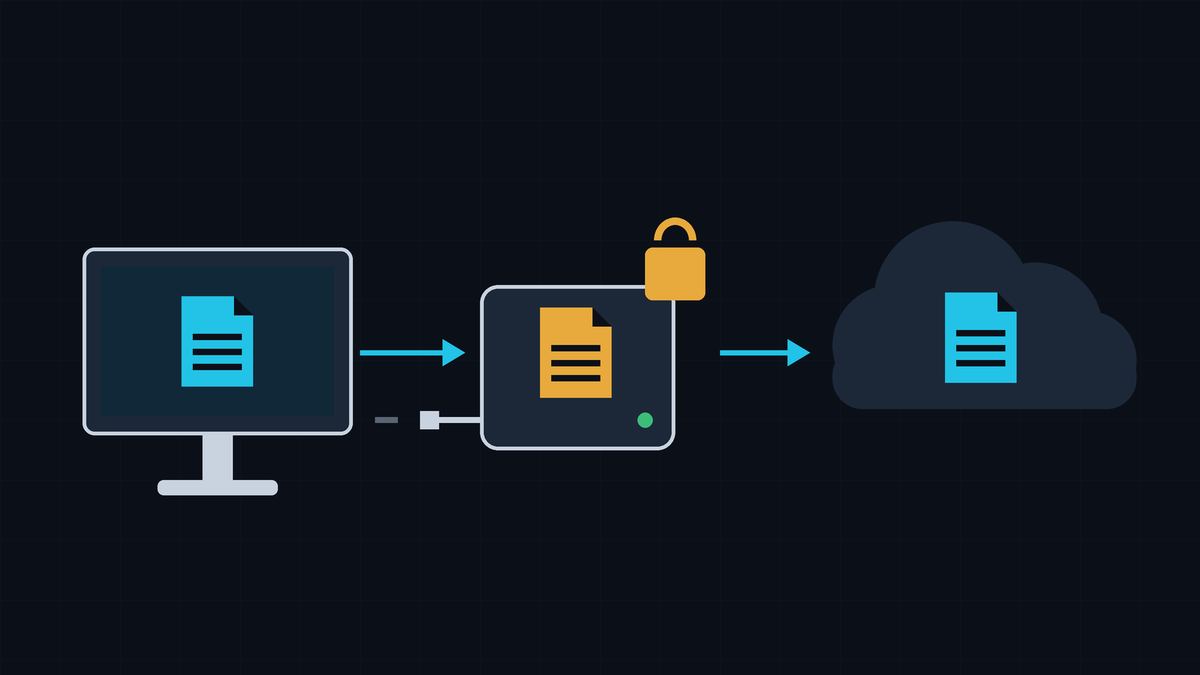
Backups are what let you say "we'll restore it" instead of "we lost it." NIST lists the events a backup protects against: ransomware, hardware failure, and accidental or deliberate deletion (NIST NCCoE). The FTC tells small businesses to back up important files regularly, in the cloud or on an external hard drive (FTC).
But having a backup isn't the same as being able to restore from it. Work through these steps and check each one off.
3
copies
the original + 2 backups
2
storage types
e.g. local drive + cloud
1
offsite
outside your office
Done when: One named person (or our IT provider, in writing) is responsible for backups, checking them, and testing restores.
Backups fail quietly when "everyone" owns them. Pick one person to own them and a backup person to cover. If an IT provider or managed service provider handles your backups, CISA says to make sure they follow backup best practices and to put your security requirements in the contract (CISA #StopRansomware Guide). Ask them to show you a successful test restore. A promise isn't enough.
Done when: I have a short list of our critical data and systems, with how much data we can afford to lose and how quickly each one needs to be back.
NIST suggests deciding which files to back up and ranking them by business value (NIST NCCoE). For each item, answer two plain-English questions:
Think beyond files: accounting data, client records, email, your website, and the passwords and encryption keys you'd need to rebuild. CISA recommends knowing which systems matter most so you can decide what to restore first (CISA #StopRansomware Guide).
Done when: We keep 3 copies of important data, on 2 different types of storage, with 1 copy offsite.
The 3-2-1 rule is a simple, widely used guideline. A CISA (then US-CERT) paper on backup options presents it, crediting photographer Peter Krogh's The DAM Book, and NIST repeats it (CISA; NIST NCCoE):
The FCC similarly suggests backing up automatically if possible, or at least weekly, and storing copies offsite or in the cloud (FCC).
Done when: At least one backup can't be reached, changed, or deleted from our everyday network and accounts.
This is the step that saves you from ransomware. CISA warns that many ransomware variants look for backups they can reach, then delete or encrypt them so you can't restore unless you pay. Its fix is to keep offline backups (CISA #StopRansomware Guide). The FTC also says to keep backups that aren't connected to your network (FTC).
Ways to get there:
Done when: We know where each backup copy lives and why, and we have both a fast local copy and an offsite copy.
Each option has tradeoffs (CISA; NIST NCCoE):
| Local (external drive, office server, NAS) | Cloud backup service | |
|---|---|---|
| Good at | Fast restores; you control the hardware | Offsite by design; protects against fire, theft, and local failures |
| Watch out for | Same building as your computers, so the same fire, theft, or flood can take both; hardware fails and needs updates | Restore speed depends on your internet; you rely on the provider's security; read the service agreement |
Using both is the easiest way to meet 3-2-1. Before picking a cloud service, CISA suggests checking the service agreement for its security practices, including whether it encrypts your data (CISA).
Done when: We've decided how Microsoft 365 email, OneDrive, SharePoint, and Teams files are backed up, and we know Microsoft's built-in recovery windows.
Many businesses assume Microsoft backs up everything. Microsoft's shared responsibility model says that for every type of cloud service, including software like Microsoft 365, your data is your responsibility: data protection, classification, and governance stay with you (Microsoft Learn). CISA likewise tells cloud customers to review the shared responsibility model and back up data often, either offline or with cloud-to-cloud backups (CISA #StopRansomware Guide).
Microsoft 365 does have built-in ways to recover deleted items, but they're time-limited:
| What | How long deleted items can be recovered | Source |
|---|---|---|
| Email (Exchange Online) | 14 days by default; admins can raise it to a maximum of 30 days | Microsoft Learn |
| SharePoint and Teams files | 93 days in the recycle bins, then permanently deleted | Microsoft Support |
| A departed employee's OneDrive | Kept 30 days by default after the user is deleted (you can change this in the SharePoint admin center). Then it stays in a deleted state for 93 more days, and only a SharePoint admin can restore it | Microsoft Learn |
These are recovery windows inside the same Microsoft 365 account, not a separate backup copy. Retention policies can keep content longer for compliance, but they're settings in the same account (Microsoft Learn). NIST also notes that different cloud services may need different backup methods (NIST NCCoE). This is step 14 of our Microsoft 365 Business Premium Setup Checklist.
Done when: The backup system has its own login with MFA (not our everyday admin account), delete protection or a retention lock is on where the service offers it, and backups are encrypted with the key stored safely elsewhere.
Treat the backup system like the vault it is. Ransomware crews often go after backups first, because a business that can restore doesn't need to pay. CISA warns that many ransomware variants look for backups they can reach, then delete or encrypt them so you can't restore unless you pay. Attackers also often get in with stolen passwords and use admin accounts to spread across a network (CISA #StopRansomware Guide). If one stolen admin login can also delete your backups, those backups won't save you.
Done when: Backups run automatically, and someone checks the success/failure reports.
Automatic backups don't depend on anyone remembering (FCC). NIST recommends monitoring backups to make sure they're actually created and can be restored (NIST NCCoE). Have failure alerts go to the backup owner from Step 1, not a shared inbox nobody reads.
Done when: We've restored real files (and at least one whole computer or system) from backup, and we know how long it took.
CISA says to regularly test the availability and integrity of backups in a disaster recovery scenario (CISA #StopRansomware Guide). NIST says backup systems that are set up but never tested add risk. It recommends tests that check the files are intact, measure how long it takes to get files back from offsite and rebuild systems, and confirm everyone knows their role (NIST NCCoE).
A simple routine: every quarter, restore a few files from each backup copy, including the offline one. Once a year, practice rebuilding a key computer or system. Write down what worked and how long it took.
Done when: We have a short written recovery plan, with a printed or offline copy.
When ransomware hits, your files, email, and shared drives may all be locked. CISA recommends keeping a hard copy and an offline version of your incident response plan (CISA #StopRansomware Guide). NIST suggests a "go bag" for recovery: critical data, passwords, and security keys kept in a separate, secure place (NIST NCCoE). Include who to call, where each backup lives, how to reach it, and the restore order from Step 2.
If ransomware does hit, CISA's response checklist says to restore from offline, encrypted backups only after the environment has been cleaned, so you don't reinfect clean systems (CISA #StopRansomware Guide).
Checked on October 11, 2026.
Microsoft, Microsoft 365, OneDrive, SharePoint, Teams, and Exchange are trademarks of the Microsoft group of companies. Hawkcrest Cyber is an independent consultancy and isn't affiliated with Microsoft or any agency cited here.
 Hawkcrest
  Hawkcrest Cyber