Guide
Who this is for: Small business owners who want to turn on multifactor authentication (MFA) for email, banking, and other business accounts, including Microsoft 365.
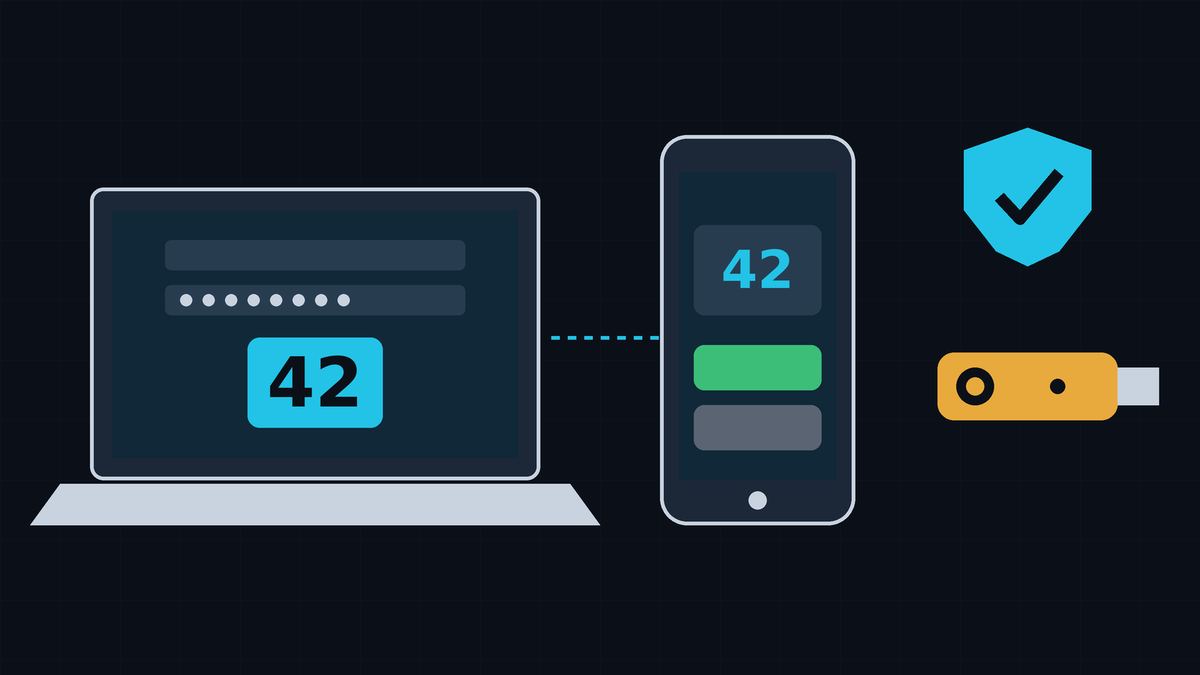
Multifactor authentication (MFA) means you need two things to sign in: your password plus something else, like an app on your phone, a security key, or your fingerprint. If a criminal steals or guesses your password, they still can't get in without that second factor (CISA). You may also see it called two-factor authentication, 2FA, or 2-step verification. They all mean the same idea.
Not all MFA is equally strong. CISA ranks the options from strongest to weakest (CISA fact sheet):
Any MFA is better than none (CISA). Turn on what you can today, then move up the list.
| Option | How strong | Why |
|---|---|---|
| Passkeys and security keys (FIDO2/WebAuthn) | Best ("phishing-resistant") | A fake login page can't trick them into working. |
| Authenticator app with codes, or push with number matching | Good | Stops "keep tapping Approve" attacks, but a code you type can still be phished. |
| Push approval without number matching | Weaker | Vulnerable to prompt-spamming ("MFA fatigue"). |
| Text message (SMS) or voice codes | Last resort | Vulnerable to phishing, SIM swaps, and phone-network attacks. |
Done when: I have a list of the business accounts that need MFA, with email at the top.
Start with the accounts a criminal would most want. CISA urges MFA for all users and all services, including email, file sharing, and financial accounts (CISA fact sheet). It also names remote access and billing systems (CISA). A typical small business list:
Done when: Every admin account has MFA, uses the strongest method available, and is used only for admin work.
Admin accounts can change everything, so do them first. CISA strongly urges system administrators and other high-value targets to use phishing-resistant MFA, or plan to move to it (CISA fact sheet). In Microsoft 365, keep Global Admins to fewer than five, use separate admin accounts for admin work, and keep two secured emergency ("break-glass") accounts (Microsoft Learn; Microsoft Learn). Part 2 covers how.
Done when: Staff use an authenticator app (or a passkey) instead of text-message codes wherever the account allows it.
Text and voice codes can be stolen through SIM swaps, where a criminal talks your phone carrier into moving your number to their phone, and through weaknesses in the phone network. CISA calls SMS a last-resort option (CISA fact sheet). NIST lists phone-network delivery (SMS or voice) as a "restricted" method with extra risk (NIST SP 800-63B-4, Sec. 3.1.3.3 and 3.2.9). CISA calls app-based codes, or push with number matching, the best options for small and mid-size businesses that can't move to phishing-resistant MFA right away (CISA fact sheet).
After you switch, check whether text messages are still turned on as a backup. CISA's guidance for highly targeted people notes that adding an app doesn't automatically remove SMS from an account, so the weak option stays as a fallback until you turn it off (CISA mobile guidance). Some services fall back to SMS for account recovery, and you may not be able to turn that off.
Done when: Any "approve sign-in" app prompts make users type or pick the number shown on the sign-in screen.
With plain push MFA, an attacker who has the password can send prompt after prompt until someone taps Approve to make them stop. CISA calls this "MFA fatigue" or "push bombing." Number matching blocks it: the sign-in screen shows a number, and you must enter it in the app to approve (CISA number matching fact sheet). NIST no longer considers plain "approve" prompts acceptable for the same reason (NIST SP 800-63B-4, Sec. 3.1.3). Microsoft Authenticator now uses number matching for all push notifications (Microsoft Learn). For other apps, look for a setting called number matching or verified push.
Done when: Admins, and anyone who can move money, sign in with a passkey or security key where the service supports it.
Passkeys and security keys use the FIDO2/WebAuthn standard. CISA calls this the only widely available phishing-resistant authentication, because it won't work on a fake login site (CISA). It can be a small USB or NFC key, or it can be built into a laptop or phone (CISA fact sheet). NIST explains why codes fall short: anything you type in by hand, like a six-digit code, can be passed along by a fake site, so it isn't phishing-resistant (NIST SP 800-63B-4, Sec. 3.2.5).
Start with your admin accounts and the people who approve payments, then add others over time.
Done when: Each person has a second sign-in method registered, and recovery codes are stored somewhere safe.
Phones get lost and keys break. NIST recommends keeping at least two separate ways to sign in, so a lost device doesn't lock you out (NIST SP 800-63B-4, Sec. 4.1.2.1). For example, register a second security key or a passkey on another device. Many services also give you one-time recovery codes. Store those somewhere safe, away from the device they back up.
Done when: Everyone knows to deny any sign-in prompt they didn't start, and to report it right away.
An MFA prompt you didn't ask for means someone may already have your password. CISA recommends training staff to recognize MFA spam and report unexpected prompts, and having someone look into denied requests, since they can mean the password has been stolen (CISA number matching fact sheet). The rule for staff is simple:
Done when: MFA is required for every employee and contractor, not just the ones who opted in.
The FTC tells businesses to require MFA for all employees, contractors, and others who access your network and devices (FTC Small Business). CISA lists requiring MFA as one of four essential steps for small businesses, using phishing-resistant MFA where available (CISA). Don't make exceptions for "the boss" or for shared accounts. If a system can't do MFA, CISA recommends planning to upgrade or replace it (CISA fact sheet).
These steps pair with steps 1 and 2 of our Microsoft 365 Business Premium Setup Checklist. You'll work in the Microsoft Entra admin center (entra.microsoft.com). Menu names below are from Microsoft's documentation as of October 2026 and may move.
Done when: Security defaults are on, or Conditional Access policies are doing the same job.
Security defaults are Microsoft's free, built-in MFA settings. They require everyone to register for MFA, require admins to use MFA, prompt other users when Microsoft sees a need, and block old sign-in methods that can't do MFA (Microsoft Learn). Microsoft 365 organizations created after October 2019 have them on by default (Microsoft Learn).
To check: go to Entra ID > Overview > Properties > Manage security defaults (Microsoft Learn). Have staff register at myprofile.microsoft.com under Security info. Security defaults use the Microsoft Authenticator app with notifications, and staff can also use codes from other authenticator apps (Microsoft Learn).
Microsoft is also requiring MFA to sign in to its admin portals. Enforcement began in October 2024 for the Entra admin center and in February 2025 for the Microsoft 365 admin center, rolling out gradually to all tenants (Microsoft Learn).
Done when: There are two cloud-only emergency admin accounts with passkeys or security keys, stored safely and tested.
Before you tighten anything, make sure you can't lock yourself out. Microsoft recommends two or more emergency access accounts (Microsoft Learn):
Microsoft's required admin-portal MFA applies to these accounts too. A passkey or certificate-based sign-in meets that requirement (Microsoft Learn).
Done when: The four baseline Conditional Access policies are on, with only the emergency accounts excluded, and security defaults are off.
Business Premium includes Microsoft Entra ID P1, which adds Conditional Access, a more flexible way to require MFA. You can't use security defaults and Conditional Access together (Microsoft Learn). Turn security defaults off only when your Conditional Access policies are ready to replace them. Microsoft's steps (Microsoft Learn):
If you choose the phishing-resistant admin policy, have your admins register passkeys or security keys first. Microsoft warns that skipping this can lock you out, and recommends starting the policy in Report-only mode before turning it on (Microsoft Learn).
Done when: Passkeys (FIDO2) are enabled in the Authentication methods policy.
Passkeys work in every Microsoft Entra edition with no extra license. To turn them on, go to Entra ID > Security > Authentication methods > Policies > Passkey (FIDO2) and allow self-service setup. Staff can then use a security key, a passkey in Microsoft Authenticator, or a synced passkey such as Apple or Google's (Microsoft Learn). Microsoft lists passkeys, FIDO2 security keys, Windows Hello for Business, and certificate-based authentication among its phishing-resistant options (Microsoft Learn).
Put a quarterly reminder on your calendar. Check that new hires are set up with MFA, remove departed staff, confirm admins still use their strongest method, and test the emergency access accounts (Microsoft says at least every 90 days) (Microsoft Learn).
Checked on October 11, 2026.
Microsoft, Microsoft 365, Entra, and Microsoft Authenticator are trademarks of the Microsoft group of companies. FIDO and FIDO2 are trademarks of the FIDO Alliance. Hawkcrest Cyber is an independent consultancy and isn't affiliated with Microsoft or any agency cited here.
 Hawkcrest
  Hawkcrest Cyber