Guide
Who this is for: Small business owners who manage the office Wi-Fi themselves and want it set up safely.
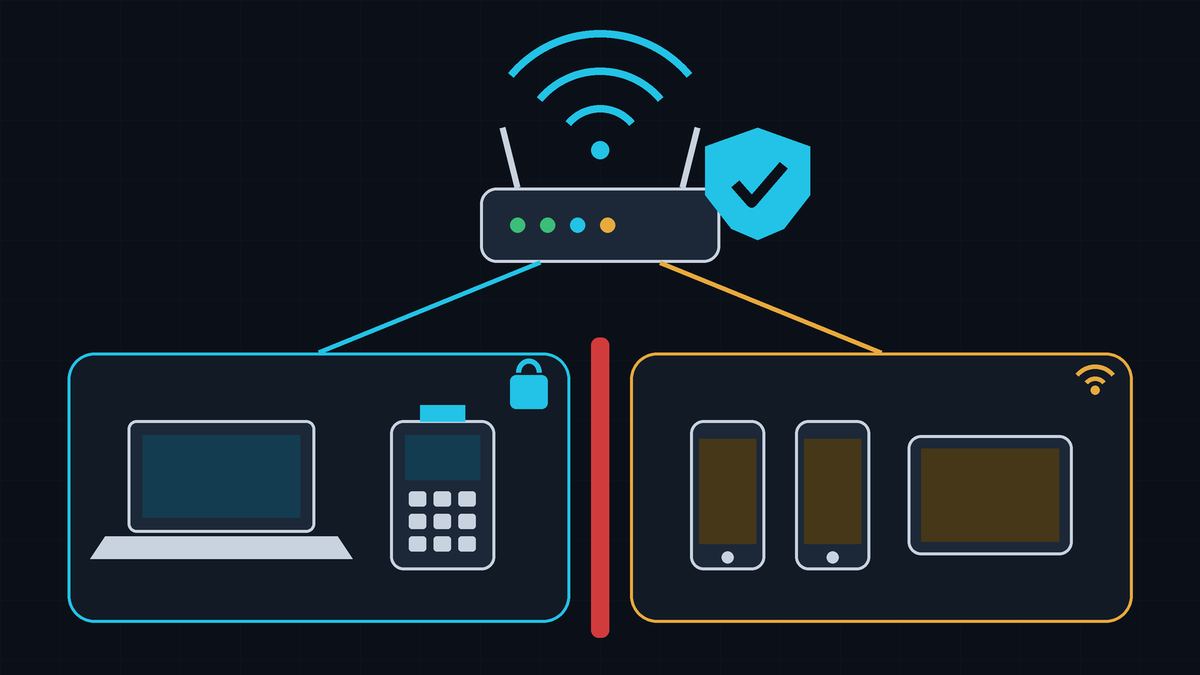
Your Wi-Fi router is the front door to your business network. Anyone within range can try the handle. CISA notes that a typical indoor access point reaches 150 to 300 feet, and outdoors it can reach as far as 1,000 feet (CISA). That's the parking lot, the shop next door, and the street.
The good news: most of the fixes are settings you already have. Work through the steps below and check each one off as you go.
Before you start: You'll need to sign in to your router's admin page. The address and default login are usually on a sticker on the router or in its manual. If your internet provider gave you the router, check their support site or call them. The FTC suggests searching "how to change [your router brand] admin password" if you get stuck (FTC).
Done when: The router admin login is no longer the factory default.
Your router has two passwords: the Wi-Fi password people use to connect, and the admin password that controls every setting. Default admin passwords are easy to find online (CISA). If someone gets into the admin side, they can change everything and undo every other step on this list (FTC). Change the admin username (if your router allows it) and password to something long and unique, and store it in a password manager (CISA).
Done when: The router is on the latest firmware, and it still receives security updates.
Router makers release updates that fix security holes. Check the maker's website, turn on automatic updates if your router has them, and sign up for update alerts if they're offered (FTC Small Business; CISA). If your internet provider supplied the router, ask whether they push updates automatically (FTC).
If the maker has stopped supporting your model ("end of life"), it won't get security fixes anymore. The FBI warns that criminals are hijacking end-of-life routers, especially ones with remote administration turned on, and recommends replacing them with a supported model (FBI IC3). The FBI notes that routers from 2010 or earlier likely no longer get updates, but newer models can be end of life too, so check the maker's support page for yours.
Done when: Wi-Fi security is set to WPA3-Personal (or WPA2-Personal with AES). WEP, WPA, and TKIP are off.
Encryption scrambles what travels over your Wi-Fi so outsiders can't read it (FTC Small Business). In the router's wireless security settings:
If the only choices are WEP or WPA, try a firmware update first. If WPA2 or WPA3 still doesn't show up, it's time for a new router (FTC).
Done when: The staff Wi-Fi password is at least 16 characters and isn't used anywhere else.
CISA recommends passwords that are long (at least 16 characters), random, and unique. An easy way to get there is a passphrase of 4 to 7 unrelated words (CISA). Don't use your business name, address, or router brand (FTC). Don't reuse a password from any other account, and don't share it by text or email (FTC Small Business).
Done when: The Wi-Fi network name (SSID) is changed from the default.
A default network name can tell an attacker what kind of router you have, which helps them look up its known weaknesses (CISA). Pick a name that doesn't include the router brand, and skip personal details (FTC).
Done when: WPS, remote management (remote admin), and UPnP are all turned off.
These features make setup easier but weaken your security (FTC):
If a specific device stops working after this, ask your IT provider or the device maker for a safer way to set it up instead of turning these back on.
Done when: Customers, visitors, and personal phones use a separate guest network that can't reach business devices.
The FTC says to limit your main business network to business-owned or business-managed devices. Guest Wi-Fi for customers should be separate from, and not connected to, your business network (FTC Small Business). Many routers have a "guest network" option with its own name and password. That way fewer people know your main password, and a guest's infected phone can't reach your computers (FTC).
Once it's set up, connect a phone to the guest network and make sure it can't see your office printer, computers, or file shares.
Done when: Card readers and point-of-sale (POS) systems are never on guest Wi-Fi. Cameras and other smart devices are kept separate where the router allows.
The FCC says to keep payment systems away from other, less secure programs, and not to use the same computer to take payments and browse the internet. Your bank or card processor may also have its own security rules you've agreed to follow (FCC). At a minimum, payment devices belong on the business network or their own network, never on the guest network.
Smart devices like security cameras, smart TVs, and thermostats can be hacked too (FTC). The FTC suggests putting cameras on a separate network from your computers and printers, so that a break-in on one doesn't hand over the other (FTC). If your router supports more than one network (or VLANs), give smart devices their own. If you're not sure how, this is a good job to hand off.
Done when: There's a reminder on the calendar to change the guest password, and the staff password gets changed when someone with access leaves.
CISA recommends changing complex passwords periodically (CISA). Guest passwords get posted on walls and passed around, so changing it on a set schedule (for example, every quarter) cuts off people who don't need access anymore. Change the staff Wi-Fi password, and the admin password if they knew it, whenever an employee or contractor who had it leaves.
Done when: The router's built-in firewall is on, and you've logged out of the admin page.
Most routers have a built-in firewall. Make sure it's turned on (FTC). When you're done, log out of the admin account (FTC Small Business). Write down what you changed and when, and store the new passwords in your password manager.
Some guides suggest hiding your network name or using MAC address filtering (only letting approved devices connect). They aren't real protection. NIST notes that network names are sent in plain text, so anyone listening can still find them, and that the name was never meant to control access. NIST also says it's "relatively trivial" to fake an approved device's MAC address (NIST SP 800-97, p. 3-3). They don't add real security, so never rely on them.
Wi-Fi security isn't a one-time job. Put a quarterly reminder on your calendar to check for router updates (Step 2), change the guest password (Step 9), and look over the list of connected devices for anything you don't recognize. The FTC also recommends checking your network for unauthorized users or connections (FTC Small Business).
Checked on October 11, 2026.
Wi-Fi, WPA3, and Wi-Fi Protected Setup are trademarks of Wi-Fi Alliance. Hawkcrest Cyber is an independent consultancy and isn't affiliated with any agency or organization cited here.
 Hawkcrest
  Hawkcrest Cyber